Tango
A new form of storytelling.
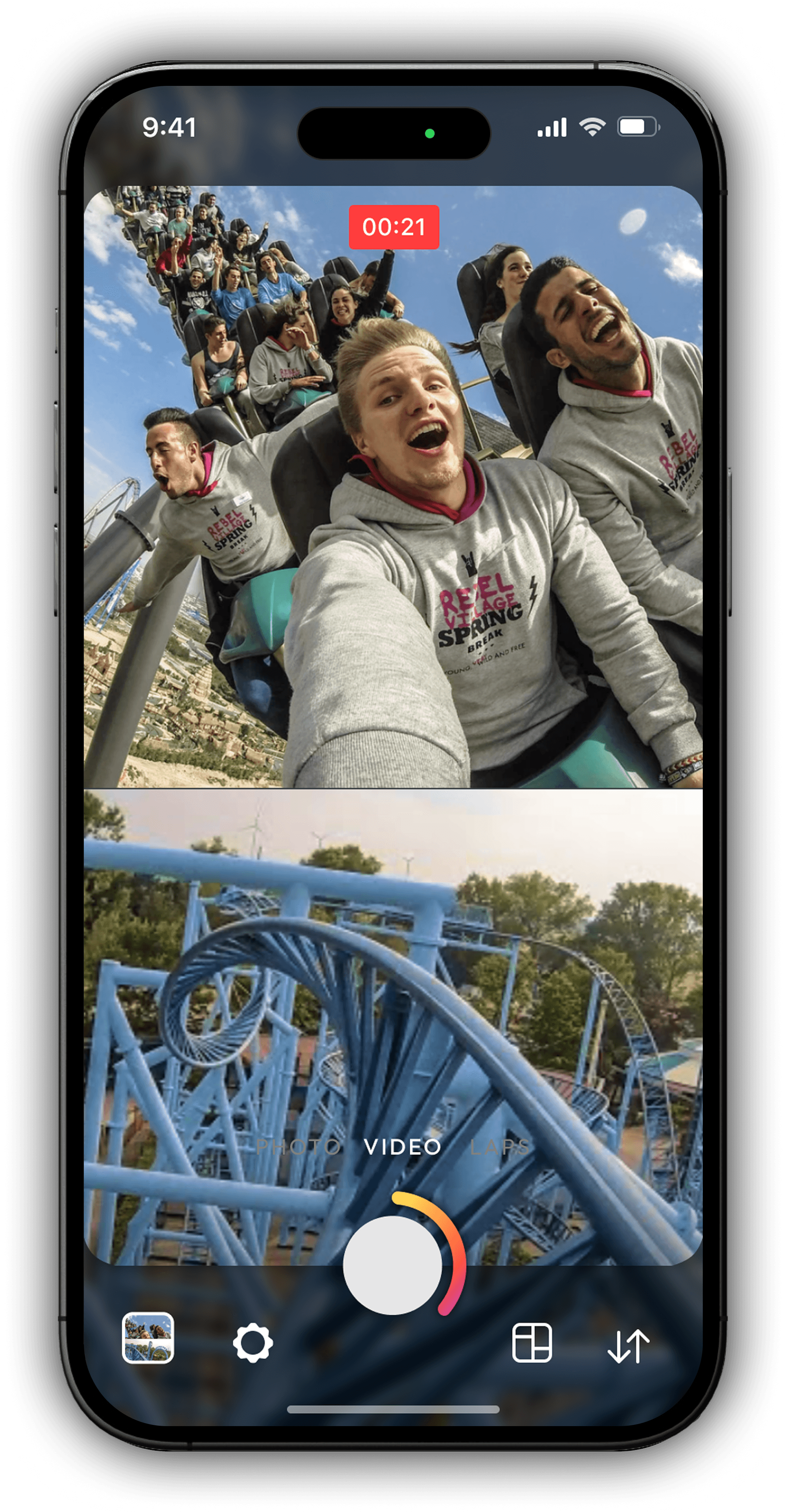
In today's world of content creation, sharing just one perspective is a limitation of the past. Tango is a mobile app that empowers storytellers by allowing them to use both cameras at the same time. Instead of having to choose between showing what you see or how you react, now you can capture a full 360-degree experience in one go.
This isn't just about social media, it's about a new form of storytelling.
Challenge
Traditional social media tools let you flip between cameras, but there's always that awkward second of white balance adjustment or a little glitch. Most apps make you pick a main camera and leave the other as just a tiny overlay. We wanted to fix that imbalance.
Approach
Tango changes the game by giving both cameras equal importance. Instead of a primary and a secondary view, you get two equally sized frames capturing the scene from both angles at once.
Thanks to the powerful CPUs in modern phones, Tango makes that a thing of the past. It seamlessly blends both camera feeds so you get a smooth, immersive capture of every moment.
Goal
We wanted to create a balanced storytelling tool where both perspectives are equally front and center.
No awkward switches, no secondary thumbnails - just a seamless, balanced storytelling experience
Who's it for?
We’re focusing on three main user groups:
Digital creators and vloggers who want to share immersive stories.
Influencers in fields like beauty, fashion, and travel looking to stand out.
Everyday social media users who love capturing life from every angle.
They’re typically between 18 and 45, tech-savvy, and comfortable with apps like Instagram or TikTok. They all want to tell richer, more engaging stories and connect with their audience in a more immersive way.
Walkthrough
The main and defaulted screen, and the first screen the user sees after installing
the app. Any permission notifications would show as a popup.
The screen designed to be as simple as possible:
The upper part contains settings related to picture settings.
The lower part is where we can find the CTA, and order related settings.
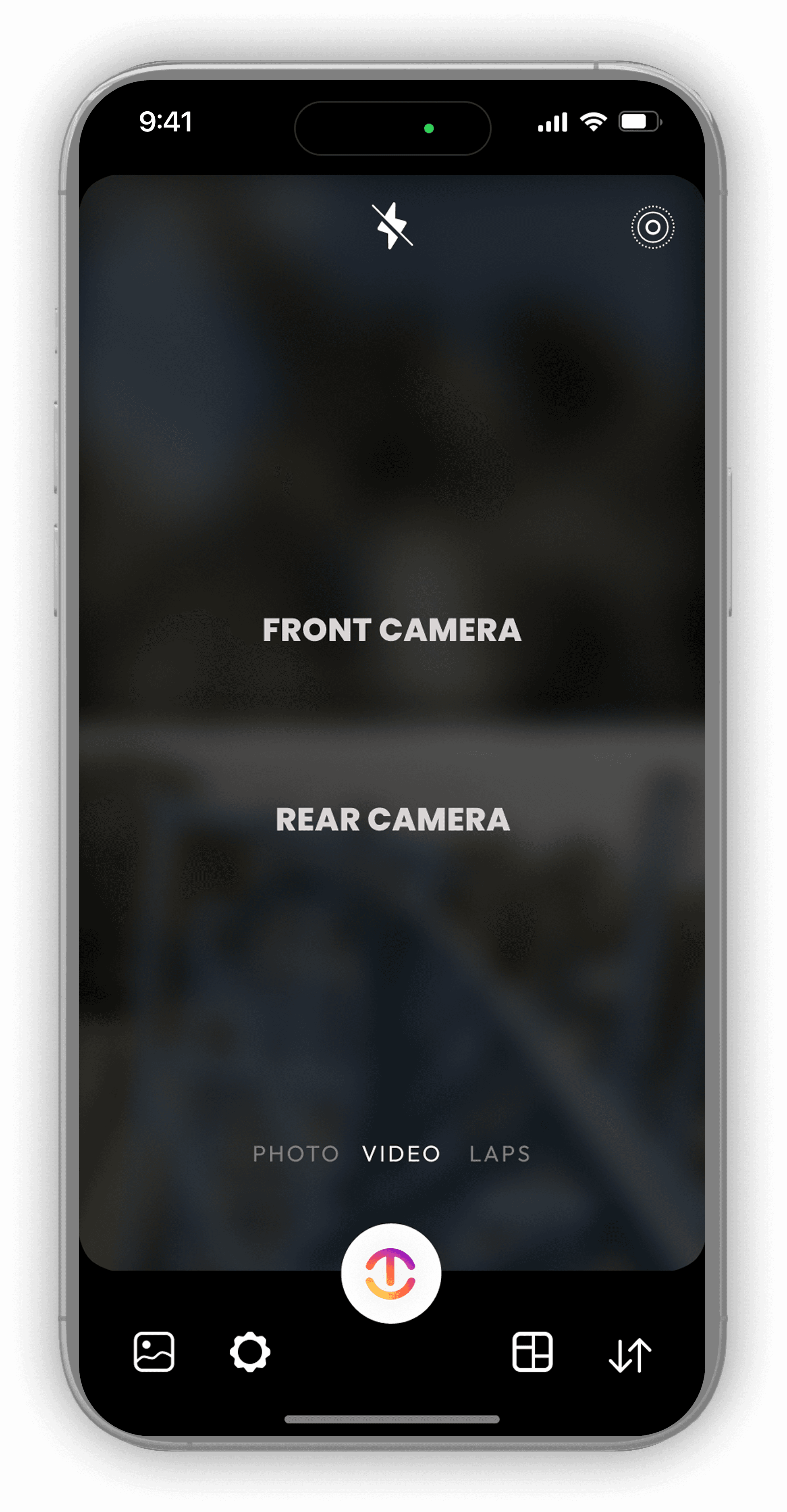
Flash adjustment
Live Photo control
Change cameras order
Choose layout styles
Tango’s camera roll
Settings
Saving options
Connect to Instagram account
Terms & conditions
Privacy policy
Capture & recording
To enable an easy “hands off” mode while recording a video, we’ve separated the Photo and Video modes.
**A long press on Photo mode would also record a video.
Thumbnail & zoom adjustments
The square shape we see from each camera is just a part of the entire frame each camera catches.
To ensure the designated object is visible within the thumbnail, a long press would pin the object to it’s current location, followed by a yellow square infographic that can be deactivated easily.
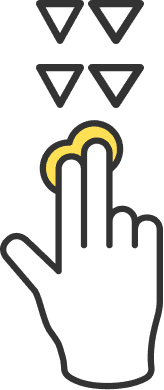
That could also be done manually by swiping up or down with 2 fingers (before, during and after recording).
To adjust the zoom, easily use the pinch gesture to zoom in and out.
Walkthrough
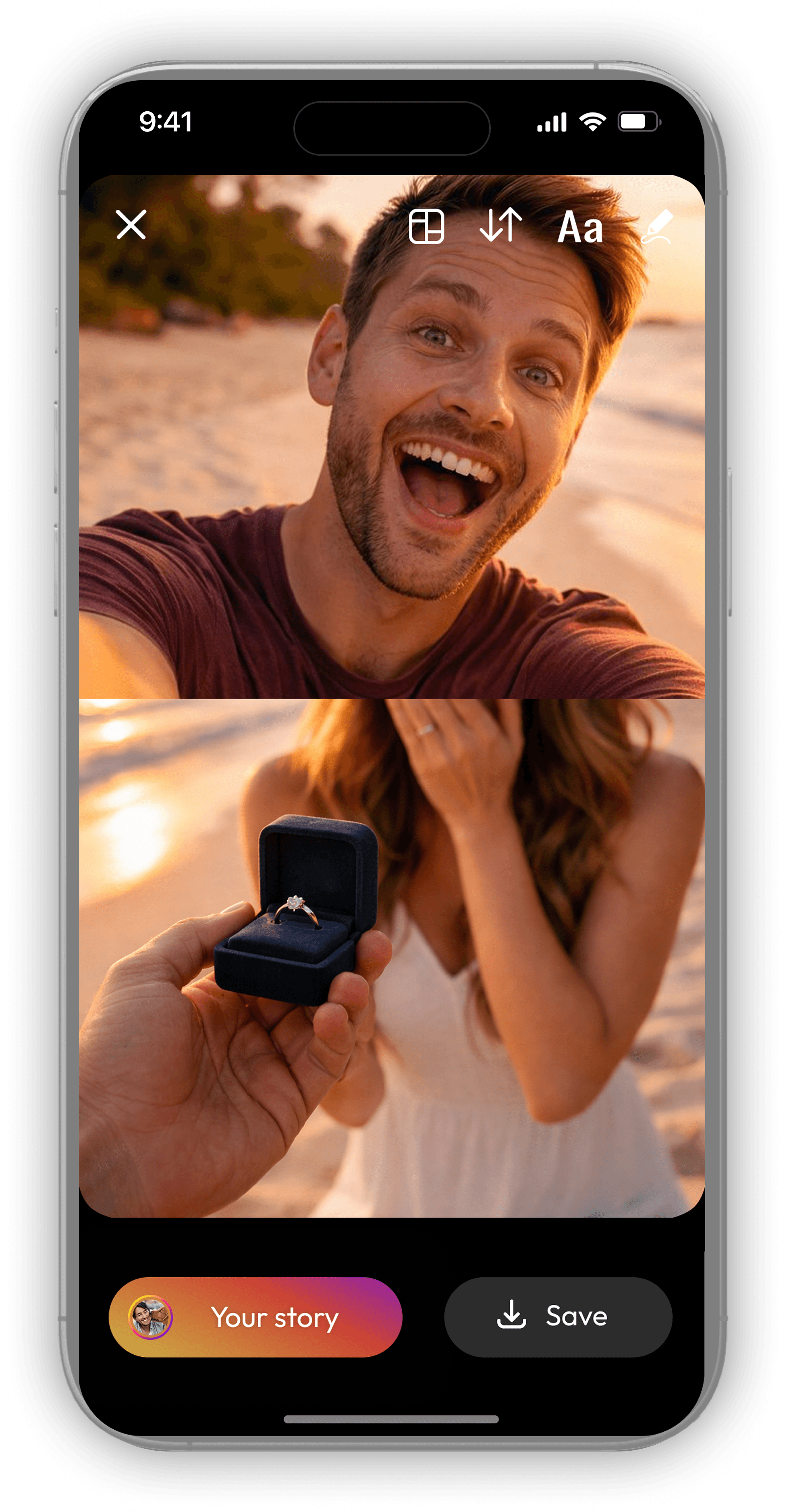
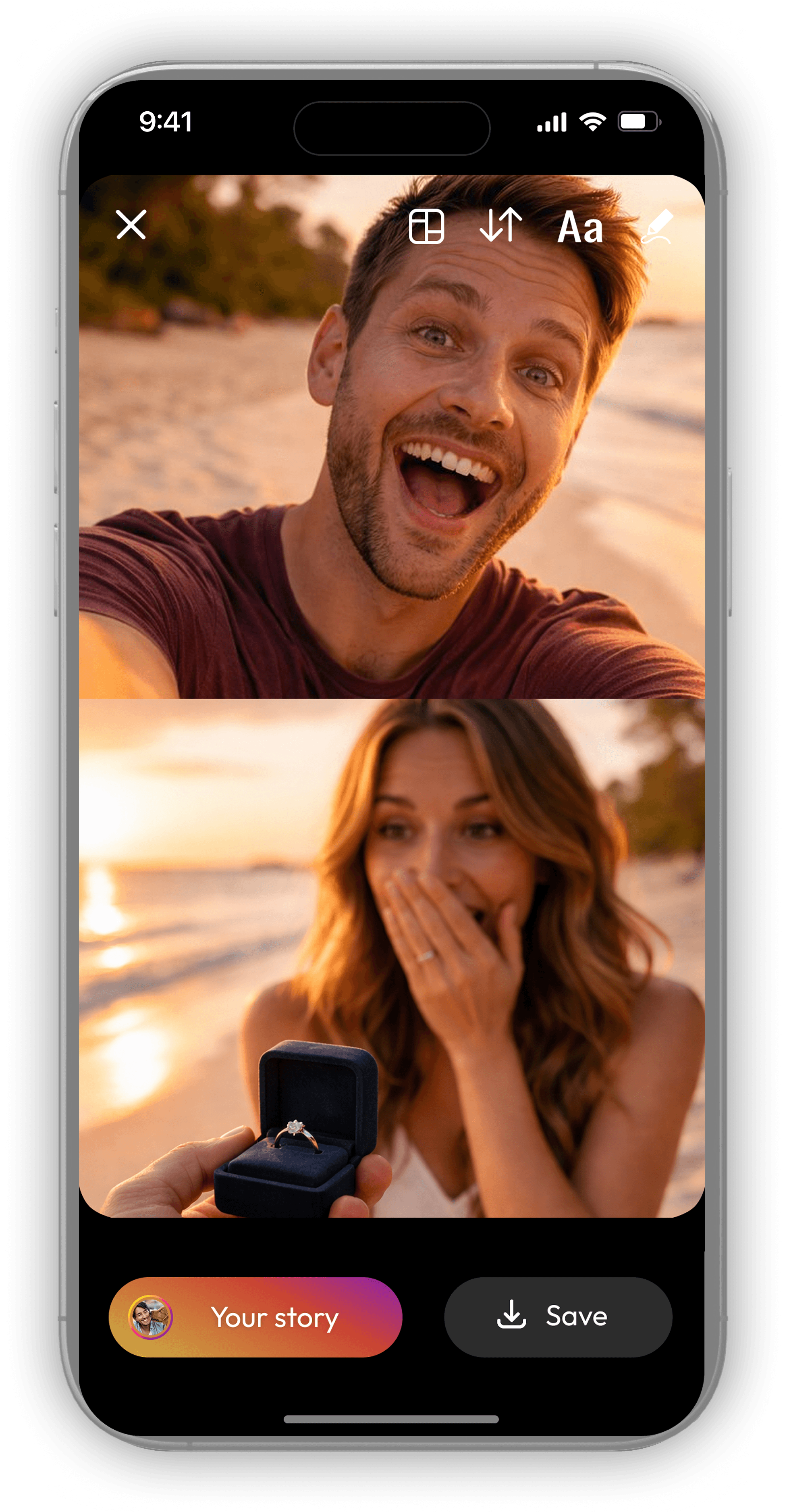
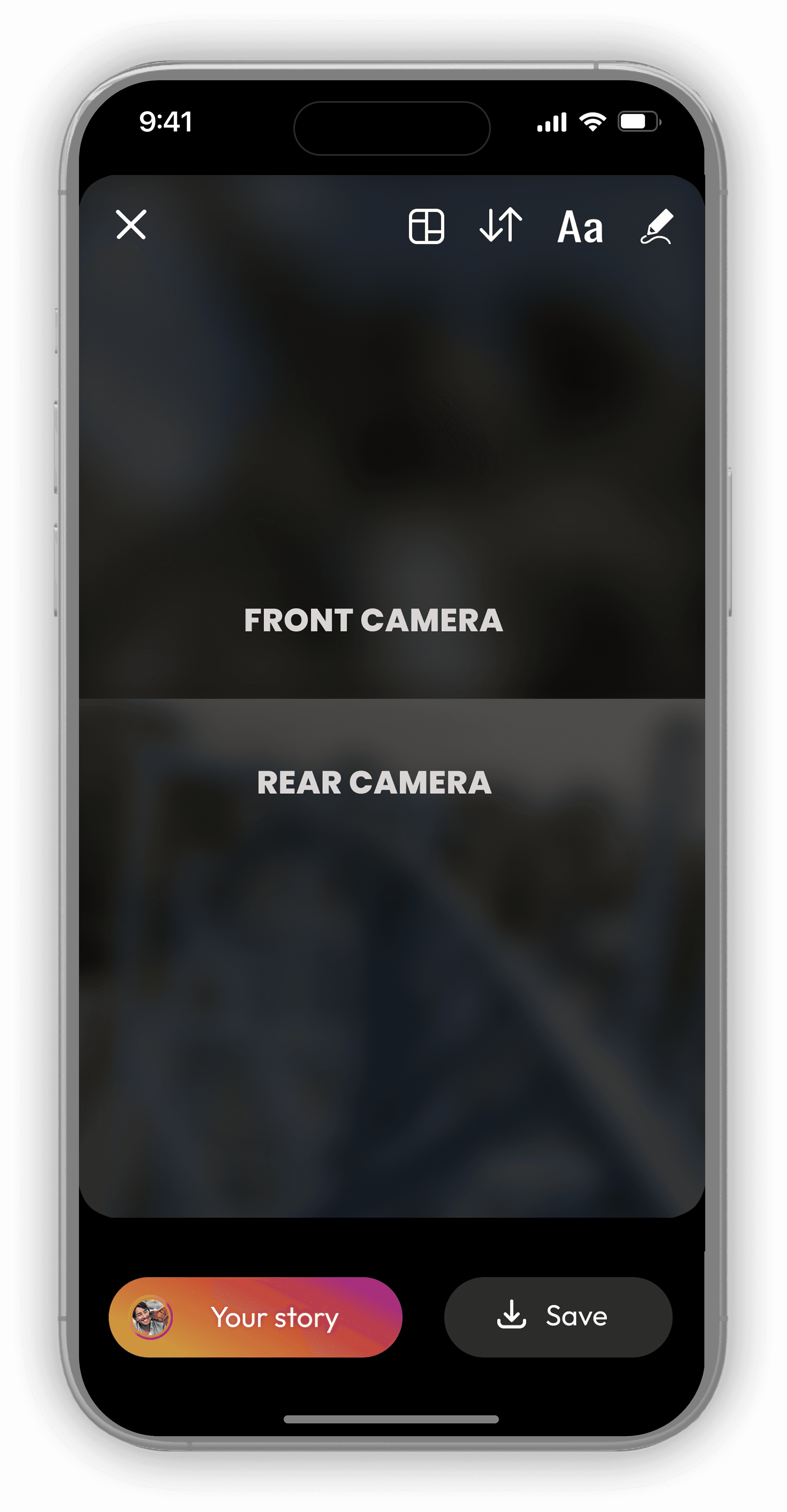
The Edit screen would show right after capturing or recording.
It offers basic tools like adding text and touch-based drawing.
Together with the necessary layout and screens order adjustments tools from the “Action screen”, to provide all the edit options possible.
At the bottom part you can find CTA’s to share or save your work.
Touch gestures:
Can I retake only one of the shots?
Well, no.
The whole idea behind Tango is to capture more of the same moment.
Combining 2 different images or videos meaning there are 2 moments, which is a different need with plenty of offered apps to do that.
How can I edit the layout after saving?
Once your work is saved, the 2 images \ videos are combined to one file.
The only way to edit the layouts is before leaving the Edit mode.
How can I take multiple photos (bursts)?
The default setting is to move the user straight to Edit mode after capturing.
Under “Settings” you can switch on “Auto Saving” to skip the Edit screen and stay on Action mode (like the default camera app on your phone).
Please notice: Once “Auto Saving” mode is on, you can only control the layout and screen order before capturing.
